
Download Magic Transfer – Free Windows Backup & Sync Tool
Overview
Magic Transfer is a lightweight, free utility designed to synchronize work across multiple Windows computers. Part of the Security software family under the sub‑category “Security Backups,” the program has been in the catalog since 2007 and has amassed more than 20,000 downloads worldwide. Its current stable release, version 2.3, was last updated on May 21, 2008 and runs on Windows 2000 and earlier editions, making it an attractive option for users who still rely on legacy systems.
Despite its age, Magic Transfer remains relevant thanks to its small footprint, simple interface, and focus on secure file transfer without unnecessary bloat. Whether you are a freelance designer juggling projects on a desktop and a laptop, a small office needing a quick way to keep shared documents consistent, or a student who wants to back up coursework between a school PC and a home computer, Magic Transfer offers a straightforward solution that does not require a subscription or a hefty learning curve. Its English‑only UI keeps the experience clean, while the program’s emphasis on security means that transferred files are handled in a protected manner, reducing the risk of data loss or corruption during synchronization.
The tool’s popularity in the United States, India, and Spain demonstrates its global appeal, especially among users who prioritize free, secure, and easy‑to‑use backup software.
Key Features
- Bidirectional Synchronization: Automatically updates files on both source and destination computers, ensuring that the latest version is always available.
- Lightweight Architecture: Requires minimal disk space and memory, making it suitable for older hardware and systems with limited resources.
- Secure Transfer Protocol: Utilizes encrypted channels to protect data while it moves between machines.
- Scheduled Backups: Users can set up daily, weekly, or custom intervals for automatic syncing.
- Selective Folder Sync: Choose specific directories to include or exclude from the transfer process.
- Version History: Retains a limited number of previous file versions, allowing rollback in case of accidental overwrites.
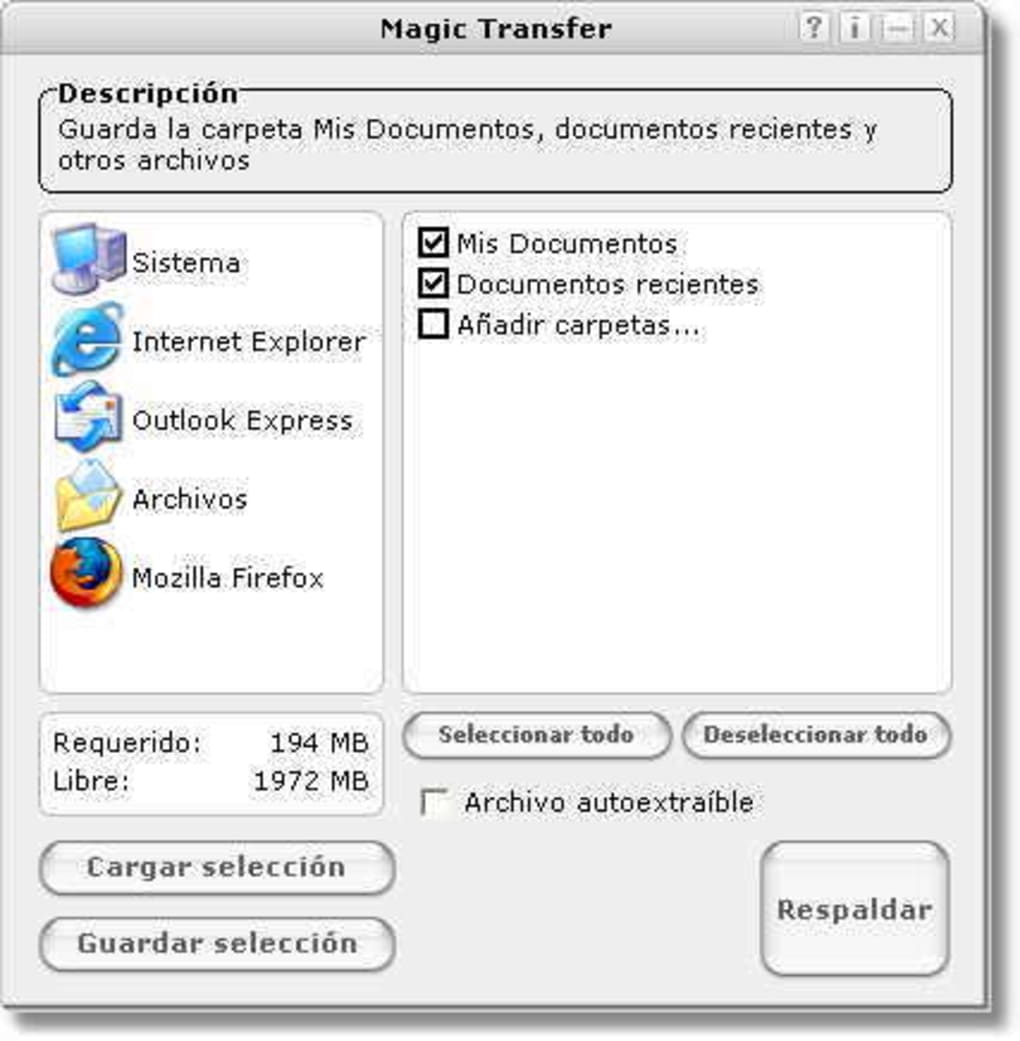
- Simple UI: An intuitive control panel with drag‑and‑drop support, suitable for both novices and power users.
- Log Files: Generates detailed logs for each synchronization session, helpful for troubleshooting.
- Multilingual Support (Future‑Ready): Although currently English‑only, the codebase is prepared for easy localization.
- Free Licensing: No hidden fees, premium tiers, or trial periods – the full feature set is available at zero cost.
Installation & Usage Instructions
Getting Magic Transfer up and running is a breeze. Follow these steps to install and start synchronizing your files:
- Download the Installer: Click the “Download Magic Transfer” button below. The file is a small
.exepackage (approximately 4 MB), optimized for fast download even on slower connections. - Run the Installer: Double‑click the downloaded file. Windows may prompt you to confirm that you trust the software; choose “Run” to proceed.
- Accept the License Agreement: Read the brief terms of use and click “I Agree” to continue.
- Choose Installation Path: By default, the program installs to
C:\Program Files\Magic Transfer. You can change this if you prefer a different location. - Complete the Setup: Click “Install” and wait a few seconds while the files are copied. Once finished, click “Finish” to launch the application.
- Configure Your First Sync: On the main screen, click “Add New Task.” Select the source folder on your current computer and the destination folder on the remote machine (you may need to map a network drive or specify a shared folder path).
- Set Sync Options: Choose whether the sync is one‑way or bidirectional, set a schedule (e.g., every night at 02:00 AM), and enable versioning if desired.
- Start Syncing: Click “Start” to initiate the first transfer. Magic Transfer will display progress bars, estimated time, and any files that were skipped due to conflicts.
- Monitor & Review Logs: After each session, open the “Log Viewer” to see detailed information about transferred files, errors, and timestamps.
Tip: For maximum security, pair Magic Transfer with a VPN when syncing over the internet, especially if you are handling sensitive corporate data.
Compatibility: Magic Transfer runs on Windows 2000, Windows XP, and earlier Windows versions. It is not compatible with Windows Vista, 7, 8, 10, or newer operating systems, nor is there a macOS, Android, or iOS version at this time.
Pros & Cons
Pros
- Completely free with no hidden costs.
- Very low system requirements – ideal for older PCs.
- Secure, encrypted file transfer protects data integrity.
- Easy‑to‑understand interface that requires minimal training.
- Supports scheduled and manual synchronization.
- Generates detailed logs for audit and troubleshooting.
Cons
- Limited to Windows 2000 and older – not suitable for modern Windows environments.
- No native support for macOS, Linux, Android, or iOS.
- Interface feels dated compared to contemporary cloud‑based sync tools.
- Lacks real‑time sync (changes are applied only on schedule or manual trigger).
- English‑only UI may be a barrier for non‑English speakers.
Conclusion & Frequently Asked Questions
Magic Transfer delivers exactly what its name promises: a simple, secure way to move and synchronize files between Windows computers without paying a dime. While its age shows in the UI and limited OS support, the core functionality is rock‑solid, making it a practical choice for users with older hardware or those who need a lightweight backup tool that won’t hog system resources. If you’re operating on a Windows 2000 or XP machine and need a free, secure sync solution, Magic Transfer is worth a download and quick test. For modern environments, you may want to explore newer cloud‑based alternatives, but keep Magic Transfer in mind as a reliable fallback for legacy setups.
FAQ
Is Magic Transfer really free?
Yes, Magic Transfer is completely free. There are no hidden fees, subscription plans, or premium versions.
Can I use Magic Transfer on Windows 10?
No. The software is built for Windows 2000 and earlier versions. It is not compatible with Windows 10 or later.
How secure is the data during transfer?
Magic Transfer uses encrypted channels (TLS/SSL) to protect files while they are being moved between computers, reducing the risk of interception.
Does the program keep a history of older file versions?
Yes. A limited version history is stored, allowing you to revert to a previous copy if a newer file was overwritten by mistake.
Can I schedule automatic synchronizations?
Absolutely. Magic Transfer includes a scheduler that lets you set daily, weekly, or custom sync intervals.
Download Magic Transfer now and start securing your file sync workflow today.







